September 3, 2026
3 Ways to Remove What You Don't Want - Backgrounds, Slots, and Pixels
three-ways-to-remove-things
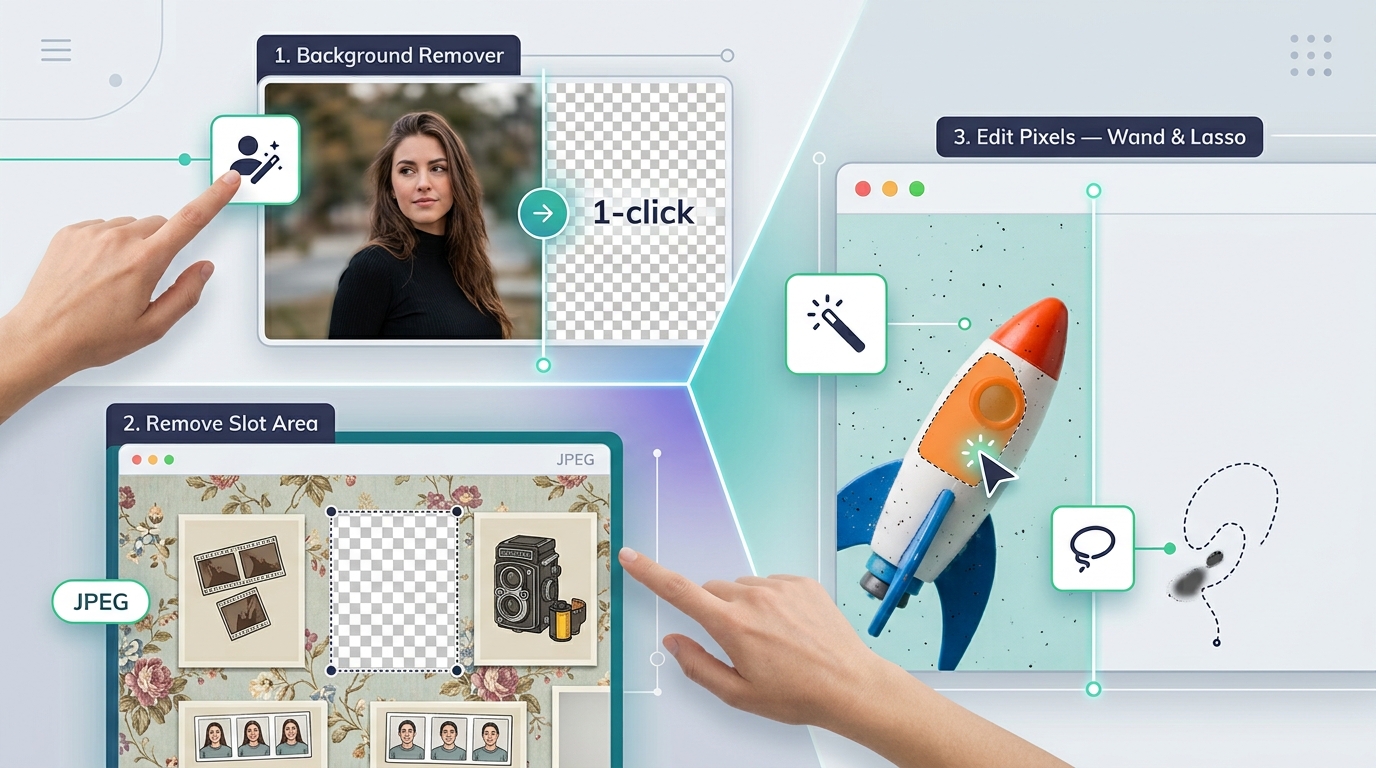
3 Ways to Remove What You Don't Want
A good design isn't just about what you add — it's about what you take away. Photo Strip Designer now gives you three different tools for removing exactly what you don't need, whether that's an entire background, an empty slot you don't want, or a single stray pixel.
1. Background Remover
Drop in any photo or graphic and strip the background out in a click — no separate app, no manual tracing. This is the fast option for cleaning up product shots, headshots, or stock graphics before they go into a design.
2. Remove Slot Area
Working from a JPEG background instead of a transparent PNG? Remove Slot Area cuts the photo slot directly out of the image, turning that area transparent so the live camera feed or photo shows through cleanly in your photobooth software — no need to source or recreate a transparent version of your background first.
3. Edit Pixels — Wand & Lasso
For the detail work, the Magic Wand and Lasso tools give you pixel-level control. Wand selects by color/similarity so you can clear out flat backgrounds or unwanted color blocks in one click. Lasso lets you freehand-select any irregular area — a stray object, a shadow, a background element that didn't come out clean — and remove exactly that, nothing more.
Why it matters
Overlay design is as much about subtraction as addition. Together, these three tools cover the full range: strip a whole background in a click, cut a transparent photo slot straight out of a JPEG, or zero in on a tiny detail with pixel-level precision. Whatever needs to go, there's a tool built for it.
Try them out next time you're cleaning up a design — and as always, let us know what would make them even better.